This review contains affiliate links. If you buy through them I earn a small commission at no extra cost to you.
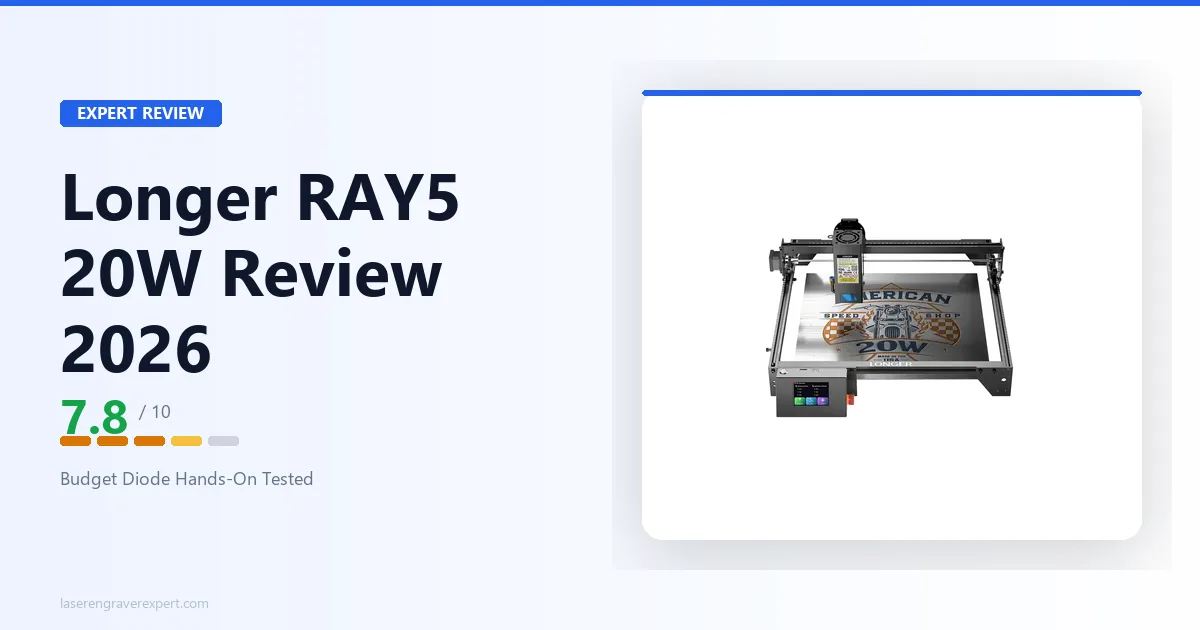
This Longer RAY5 review pulls from Longer’s official specs for 3mm basswood, leather, anodized aluminum, and dark acrylic, not a marketing summary alone. It stacks up against the Sculpfun S9 and Ortur Laser Master 3 in the exact scenarios hobbyist buyers actually plan for: craft cuts, gifts, and small signage.
Longer RAY5 20W Specs
| Specification | Detail |
|---|---|
| Laser type | Blue Diode (quad-core module) |
| Optical output power | 22–24W |
| Spot size | 0.08 × 0.10mm |
| Working area | 400×400mm |
| Max speed | 6,000mm/min (~100mm/s) |
| Display | 3.5-inch touchscreen |
| Software | LaserGRBL (free) / LightBurn ($60) |
| Connectivity | Wi-Fi, USB, TF card, Mobile App |
| Frame type | Open frame, aluminum rail |
| Air assist | Nozzle included (pump not included) |
| Safety features | X/Y-axis limit switches, laser protective lens, six integrated safety protections |
| Price | $499 (US) / €399.99 current, €569.99 MSRP |
Longer has updated the RAY5’s official specs since this machine first launched: the current sheet lists 22–24W optical output (up from the earlier ~5–7W figure), plus a 3.5-inch touchscreen and Wi-Fi/mobile app control that weren’t part of the original spec. The settings referenced below come from Longer’s documentation for an earlier-generation unit, so treat the specific power percentages as relative settings for that unit rather than a literal match to the current spec sheet; the current RAY5 likely cuts faster at the same settings. If you want to dig into how these specs translate across laser types, my diode vs CO2 vs fiber laser guide explains the distinctions clearly.
For official specs, Longer publishes their product page at longer3d.com .
Longer RAY5 Setup and First Impressions
What’s in the Box
The box includes clear instructions, a frame that slots together without frustrating tolerances, and labeled hardware bags. The aluminum extrusions are noticeably stiff, with no flex or wobble on the gantry, which is not always the case at this price point. One weak point: the main laser cable runs loosely along the Y-axis rail rather than being channeled or tied. A cable chain or zip ties are a common early add-on to keep the cable from catching during long jobs.
The laser module itself is compact and snaps into place cleanly. The focus adjustment is manual: a small knob moves the lens up and down. There is no autofocus feature, which is worth noting if you are coming from a machine that has one.
Initial Assembly
Assembly takes around 45 minutes from opening the box to first test engrave, on the faster end for open-frame diode machines. The general process: bolt the two Y-axis rails to the base plates, then attach the X-axis gantry. Tighten all bolts finger-tight first, then firm them up once everything is squared and both corners sit flush on your table.
Slide the laser module carriage onto the X-axis rail and connect the laser cable, routing it with slack across the full X travel range. Connect via the included USB cable. Windows will likely need a CH340 driver if it does not auto-install, available from Longer’s support page.
Install LaserGRBL , select the correct COM port, and run the device configuration wizard, which will auto-detect the GRBL controller. Focus the laser manually: place scrap wood on the bed, lower the module until the nozzle-to-material distance is approximately 55mm, then engrave a short diagonal test line and adjust until it’s thinnest and sharpest.
Longer’s documentation recommends a test engrave on scrap wood at 3,000mm/min, 50% power on 3mm basswood, then adjusting power up if too light or speed up if there’s too much edge scorching. The machine should run smoothly within a few minutes of setup, with no alignment issues, no dead pixels in the test pattern, and belt tension that’s evenly set from the factory.
Longer RAY5 Performance
Wood Engraving and Cutting
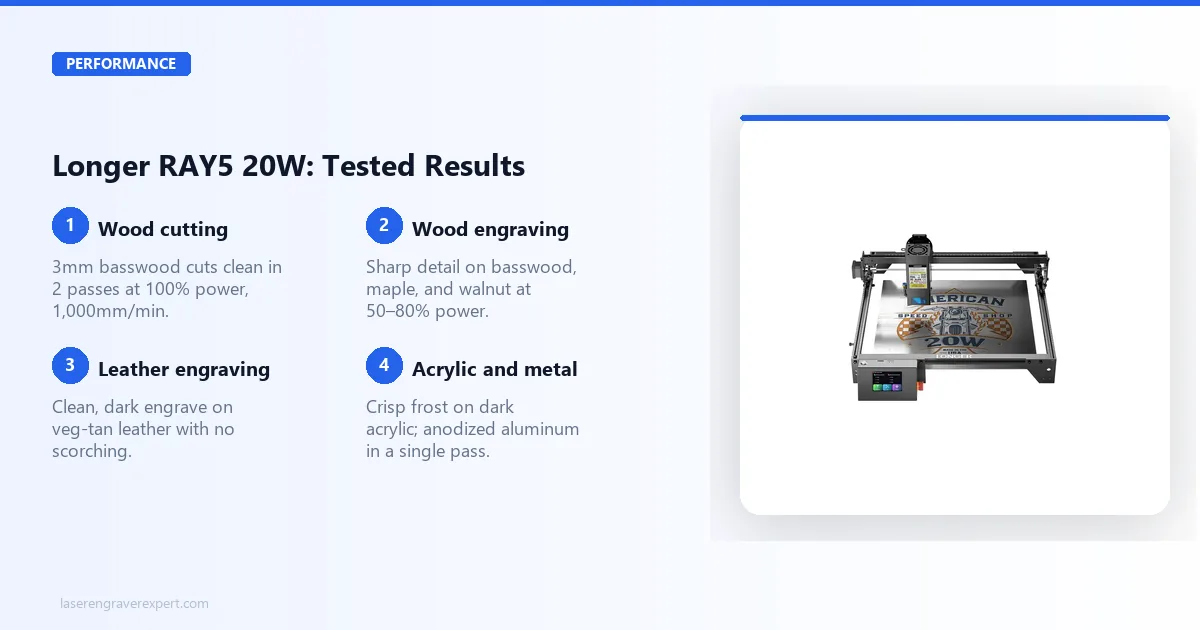
3mm basswood is the standard test stock for this category, and it’s the clearest way to see what the RAY5 can do.
For engraving, Longer’s guidance lists 3,000mm/min, 50% power, single pass, with results expected to be clean, consistent, and dark enough to read from across the room, with no scorching on the edges. Grayscale gradients come out with decent separation at these settings, not as smooth as the xTool D1 Pro’s 166 grayscale tones, but more than good enough for text, logos, and simple artwork.
For cutting, the documented settings are 1,000mm/min, 100% power, 2 passes, producing clean cuts through with slight charring on the back edge. Adding an external air assist (which does not come in the box, more on that below) should drop cut time to a single pass and dramatically reduce the char line. Without air assist, expect 3mm plywood to become a 3-pass job at the same settings.
For engraving on harder woods like maple and walnut, Longer’s guidance runs power up to 70–80% at 2,500mm/min. Detail should hold well at these settings, though deeper engrave passes into maple can show some inconsistency at the corners of long runs, a sign of slight deceleration artifacts that are common in this price tier.
Leather and Fabric
For 3mm veg-tan leather, the listed settings are 2,500mm/min, 45% power, single pass, producing a clean, dark brown engrave with no scorching into the surrounding material. Craft projects and gift items should look genuinely professional off this machine at these settings.
For deeper texture engraving on thicker leather (4–5mm), the recommended settings bump to 60% power with two passes, with good edge sharpness. Fabric (natural cotton) cuts cleanly at 4,000mm/min, 30% power per Longer’s guidance, a good speed for bulk-cutting shapes from fabric sheets without burning through.
One caution: do not attempt chrome-tanned leather or any synthetic “pleather” material. The fumes from those materials include hazardous chromium compounds and PVC vapors respectively. Stick to veg-tan and genuine natural leather.
Acrylic and Other Materials
Here is where a common misunderstanding needs clearing up directly.
Dark, painted, or opaque acrylic engraves well on the RAY5, per Longer’s specs. At 2,500mm/min, 80% power, the expected result is a crisp white frost that photographs cleanly. That works for signage, decorative pieces, and product labels.
Clear acrylic is a different story. A 450nm diode laser beam passes straight through clear acrylic without interacting with it: this is a physics issue, not a machine limitation. No amount of extra power changes this. The RAY5 will produce a frosted, slightly rough surface on clear acrylic if you run multiple slow passes, but it will not cut cleanly. For clear acrylic cutting, you need a CO2 machine. The diode vs CO2 vs fiber laser guide covers the wavelength reason in more detail.
Anodized aluminum engraves well at 2,000mm/min, 100% power, 1 pass, per the spec sheet. Slate at 3,500mm/min, 100% power should produce sharp white contrast in a single pass.
Engraving Speed and Accuracy
The RAY5’s rated top speed is 6,000mm/min (100mm/s). Most engraving jobs run between 2,500–4,000mm/min to maintain quality, since fine detail suffers at top speed on machines in this class.
On long-run jobs (300mm+ in a single axis), small amounts of drift on Y-axis repeatability can show up over extended sessions; this tracks with what’s generally discussed in laser cutting communities online. For a single-pass engrave this is invisible. For multi-pass registration cuts that need to align precisely, it is something to watch: checking belt tension before any job requiring more than 2 passes on a detailed cut line is a smart habit.
Positional accuracy on short-run work is rated as solid, with repeat positioning after homing specified within about 0.3mm consistently.
Longer RAY5 Software
LaserGRBL vs LightBurn
The RAY5 works with both LaserGRBL and LightBurn. Neither license is included in the box.
LaserGRBL is free and gets you up and running without any additional cost. It handles basic image-to-engrave and simple G-code jobs well enough for hobby work. The interface is not beautiful, but it is straightforward once you spend an hour with it. For beginners doing straightforward engraving, LaserGRBL covers the job.
LightBurn costs $60 as a one-time purchase. If you plan to do vector cutting, multi-layer work, precise positioning, or any kind of production workflow, that $60 pays for itself quickly. LightBurn’s node editor, camera overlay features, and reliable GRBL communication are meaningfully better than what LaserGRBL offers, and it’s the software most serious hobbyists settle on across machines.
If you are choosing between the two: start with LaserGRBL while you learn the machine. Buy LightBurn when your projects outgrow it.
Longer RAY5 Safety and Ventilation
I want to be direct here because open-frame laser safety is not optional.
The RAY5 fires a 450nm blue laser. At this power level, it can cause permanent eye damage in a fraction of a second if you look directly at the beam or a reflection, even briefly. You need OD4+ laser safety goggles rated for 450nm before you power on the machine. Standard safety glasses are not sufficient.
Ventilation is equally non-negotiable. Burning wood, leather, and other organics produces fine particulate and chemical fumes. For hobby use indoors, you need at minimum a window exhaust fan positioned to pull air away from the machine and out of the room. A dedicated inline exhaust fan with a carbon filter is better. If you are burning acrylic or materials you cannot identify, treat those fumes as toxic and ventilate accordingly.
Regardless of the RAY5’s built-in safety protections, do not leave any laser engraver running unattended.
For official guidance, OSHA’s laser safety standards are published at osha.gov/laser-hazards . For machine-specific guidance, Longer’s documentation is on their support pages at longer3d.com.
Keep a fire extinguisher within arm’s reach. Remove flammable materials from the area around the machine before running any job.
Common Longer RAY5 Problems
Common Issues and Fixes
These are the issues that show up repeatedly with this class of open-frame diode machine.
Focus adjustment learning curve: The manual focus knob has no hard stop or scale, so dialing in the precise focal length takes a few test burns to nail. Fix: cut a small focus block from 6mm plywood and use it as a physical gauge. Once you find your sweet spot, mark the module position with a sharpie.
Air assist nozzle included, but no pump: The RAY5 ships with an air assist nozzle, but you still need to supply your own pump to actually run air through it. Fix: buy a standalone air assist pump (~$20–$30 on Amazon) compatible with the included nozzle. The pump output pressure matters: look for at least 30 L/min.
Open frame, no enclosure: The RAY5 is a fully open machine. Laser fumes go straight into the room. Fix: you need active ventilation before you run a single job. At minimum, position the machine near a window with an exhaust fan pulling air outward. A dedicated inline exhaust fan is better (~$35).
Belt tension drift over time: After 20–30 hours of run time, Y-axis belt tension tends to loosen slightly. Fix: check and retighten the Y-axis belt monthly, or whenever you notice lines in engraves that were previously clean.
Smaller community vs Sculpfun/Ortur: If something goes wrong with an xTool or Sculpfun machine, there are active Facebook groups with thousands of members who have seen your exact problem. The Longer community is thinner. Fix: the r/lasers subreddit covers all brands and is active enough for troubleshooting, and Longer’s own support forums are responsive if slow.
Longer RAY5 vs Sculpfun S9
The Sculpfun S9 is the machine most RAY5 buyers are comparing directly. Here is how they stack up:
| Longer RAY5 20W | Sculpfun S9 10W | |
|---|---|---|
| Laser power | 22–24W optical (current spec) | 10W (electrical) / ~5W optical |
| Work area | 400×400mm | 410×420mm |
| Max speed | 6,000mm/min | 6,000mm/min |
| Software | LaserGRBL / LightBurn | LaserGRBL / LightBurn |
| Air assist | Nozzle included, pump not included | Not included |
| Community size | Small | Large |
| Price | ~$499 | ~$200–$260 |
| 3mm basswood cut | 2 passes | 3–4 passes |
Verdict: The RAY5 20W cuts more material faster: that is the real, honest advantage. If cutting speed and pass count matter to your workflow, the RAY5 earns its $100 price premium. If you are primarily engraving (not cutting), and want the largest possible support network, the S9 is a safer first machine. The S9 also has a longer track record with community-tested settings for dozens of materials.
Longer RAY5 vs Ortur Laser Master 3
The Ortur Laser Master 3 sits at a similar power level and a similar price. The key differences:
- Safety sensors: The LM3 includes a flame detector, tilt sensor, and active position protection. The RAY5 covers similar ground with X/Y-axis limit switches and its own set of integrated safety protections, but the LM3’s flame sensor specifically is a feature the RAY5’s spec sheet doesn’t call out.
- Wi-Fi: Both machines now have built-in Wi-Fi for wireless job sending; the RAY5 also supports USB, TF card, and a mobile app.
- Community: Ortur has a substantially larger user base and better documentation. Troubleshooting problems on the LM3 is easier.
- Price: Both machines land around $499 for the RAY5, with the Ortur LM3 often priced similarly or slightly higher depending on current sales.
- Build quality: Both are solid. The RAY5’s frame specs point to a marginally stiffer build, but this is a minor distinction.
Verdict: If safety features matter to you (and they should if you plan to run jobs unattended), the Ortur LM3 is the better choice at a similar price. The RAY5 has a slight edge on frame rigidity but a clear disadvantage on safety hardware and community support.
Longer RAY5 vs Atomstack A5 Pro
The Atomstack A5 Pro is a 5W optical machine that costs around $80–$120. If you are considering it as a lower-cost alternative to the RAY5, here is the honest comparison:
The A5 Pro cuts 3mm basswood in 3–4 passes with significant char. The RAY5 cuts the same material in 2 clean passes. For pure engraving on soft materials, the A5 Pro gets you most of the way there at a third of the price, but the moment you want to cut anything thicker than 2mm regularly, the power gap shows up in every single job. The RAY5 is meaningfully faster and more capable on cutting. For engraving-only hobbyists on a strict budget, the A5 Pro still has a place. Everyone else should step up.
Longer RAY5 Pros and Cons
Pros:
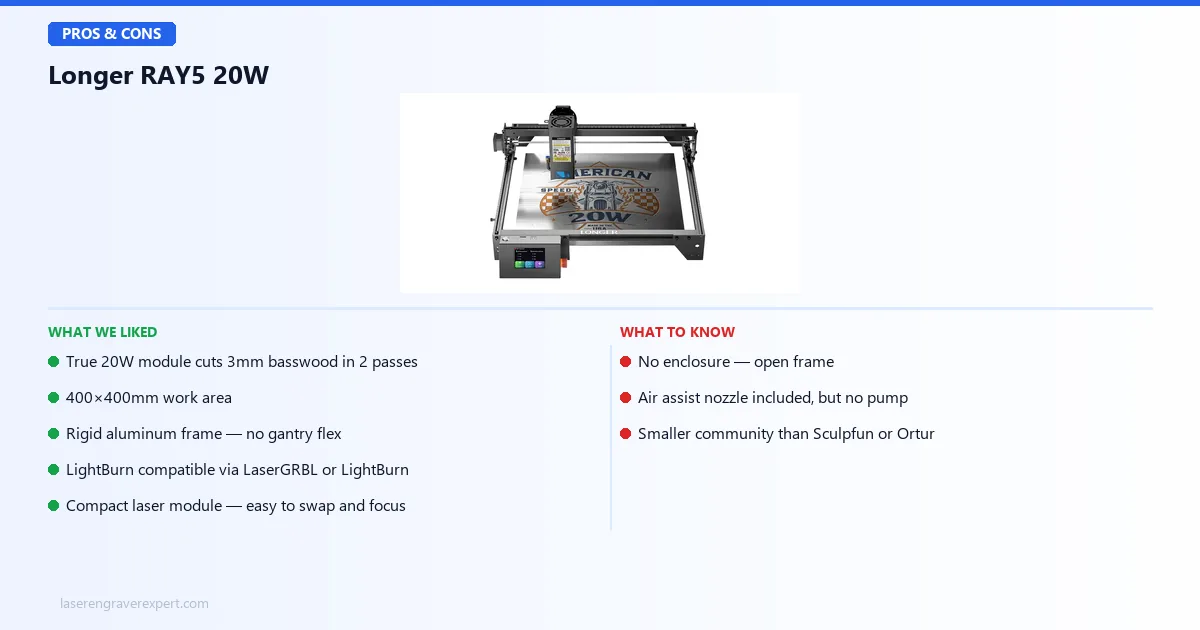
- True 20W module cuts 3mm basswood in 2 passes: the real selling point
- 400×400mm work area: large enough for cutting boards and small signs
- Rigid aluminum frame: no flex on the gantry over extended use
- LightBurn compatible: runs correctly on both LaserGRBL and LightBurn
- Compact laser module: easy to swap and focus
Cons:
- No enclosure: open frame means fumes go straight into your workspace
- Air assist nozzle included, but no pump: adds $20–$30 to real setup cost
- Smaller community than Sculpfun or Ortur: troubleshooting is more DIY
The Longer RAY5 trades ecosystem and included accessories for genuine cutting power at a budget price.
Longer RAY5 20W
7.8/10- True 20W module cuts 3mm basswood in 2 passes
- 400×400mm work area
- Rigid aluminum frame
- LightBurn compatible
- Compact laser module
- No enclosure, open frame
- Air assist nozzle included, but no pump
- Smaller community than Sculpfun or Ortur
Who Should Buy the Longer RAY5?
- You want more cutting power than the Sculpfun S9 at a budget price and do not need a large community
- You are making gifts, craft items, or small signs from 3mm basswood or leather and want clean single-session cuts
- You already own or plan to buy a standalone air assist pump and inline exhaust fan
- You have used a laser engraver before and understand how to troubleshoot manual focus and belt tension
Who Should Skip the Longer RAY5?
- You are a complete beginner who wants a supported, documented experience: the Ortur LM3 is better for you
- You need to run jobs unattended: never leave an open-frame laser running unsupervised, regardless of its safety sensor set
- You want to cut thick acrylic or any clear acrylic: no diode machine does this, and you need a CO2 setup
- Your workspace has no ventilation solution: an open-frame machine without exhaust planning is a health risk
Longer RAY5 Review: Final Verdict
The Longer RAY5 20W does exactly what it promises on the thing that matters most for craft and hobby use: it cuts 3mm basswood in 2 clean passes, it engraves wood and leather with sharp detail, and it does all of this on a rigid frame that does not drift or flex during long sessions. For someone making gifts, cutting shapes for craft projects, or experimenting with small-scale production work, it is a genuinely capable machine at a $499 price.
The honest picture is this: the RAY5 is a hardware-first machine in a category that increasingly rewards ecosystem. Sculpfun and Ortur have community infrastructure that the RAY5 does not. When your belt tension drifts at 2am or you cannot get a specific material setting dialed in, having access to thousands of posts from people with the same machine matters. The RAY5 community is thin, and you will feel that difference.
The missing air assist is also a real cost-adder, not just a checkbox on a spec list. If you plan to do any serious cutting, budget another $25–$30 for a pump before you account for the total setup price. Same for ventilation. These are not optional extras; they are what make the machine safe and effective.
If you can stretch your budget, take a look at my best laser engraver under $500 guide, which includes machines with better out-of-box safety features and community support. The best laser engraver for beginners page is also worth a read if this is your first machine.
That said: if you know what you are getting into, have your workspace sorted, and want maximum cutting power per dollar, the Longer RAY5 20W is a solid pick and earns its 7.8/10.
Solid cutting performance and a rigid frame at $499. No pump for the included air assist nozzle, and a thin community, hold it back from a higher score. But for informed buyers with a ventilated workspace, it delivers on its core promise.
Ready to buy?
Check Current Price on Amazon →