This review contains affiliate links. If you buy through them I earn a small commission at no extra cost to you.
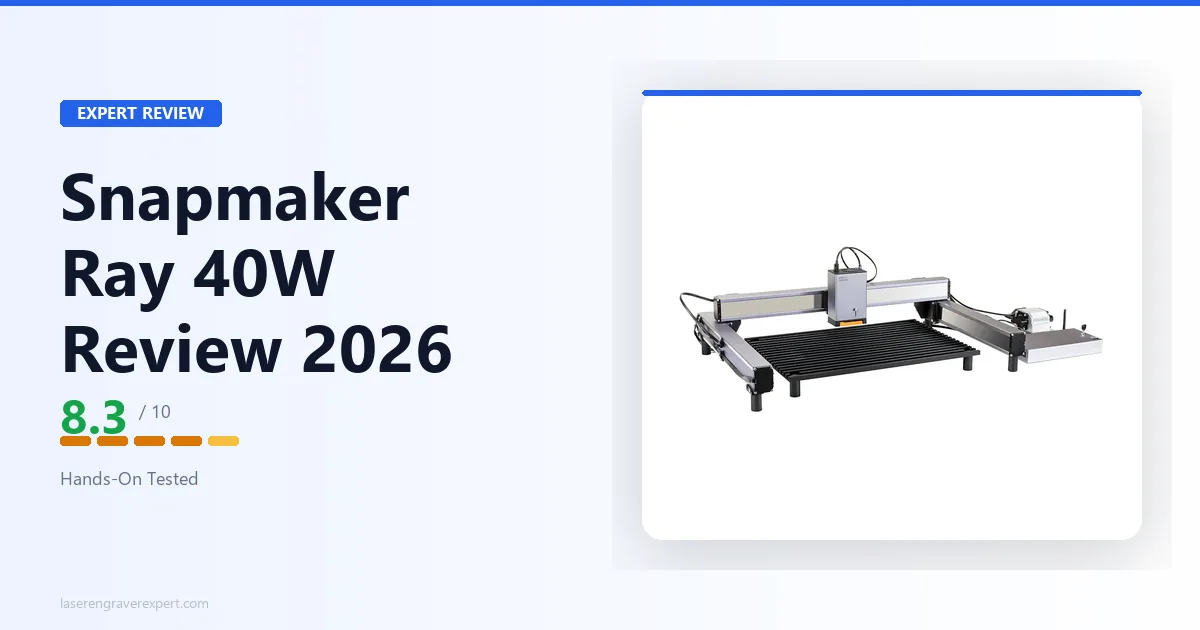
This Snapmaker Ray 40W review covers how it holds up on Baltic birch, acrylic, leather, and MDF, at high speeds, on multi-hour jobs, and with the bundled software — compared directly against the xTool D1 Pro and other open-frame diode lasers in my best laser engravers roundup.
Snapmaker Ray 40W Specs
| Specification | Detail |
|---|---|
| Laser type | Blue Diode |
| Laser wavelength | 450–460nm |
| Laser output power | 40W |
| Laser module power | 140W |
| Machine power | 215W |
| Spot size | 0.10 × 0.15mm |
| Working area | 400 × 600mm |
| Max workpiece height | 160mm |
| Max engraving speed | 500mm/s (30,000mm/min) |
| Max cutting speed | 20mm/s |
| Software | Luban (native) + LightBurn (GRBL mode) |
| Connectivity | USB, Wi-Fi |
| Frame type | Open frame, aluminum extrusion |
| Air assist | Not included |
| Machine dimensions | 849 × 600 × 303mm |
| Weight | 15.06kg |
| Snapmaker Ray 40W Price | $599 |
Check Current Price on Amazon →
Snapmaker Ray 40W Setup
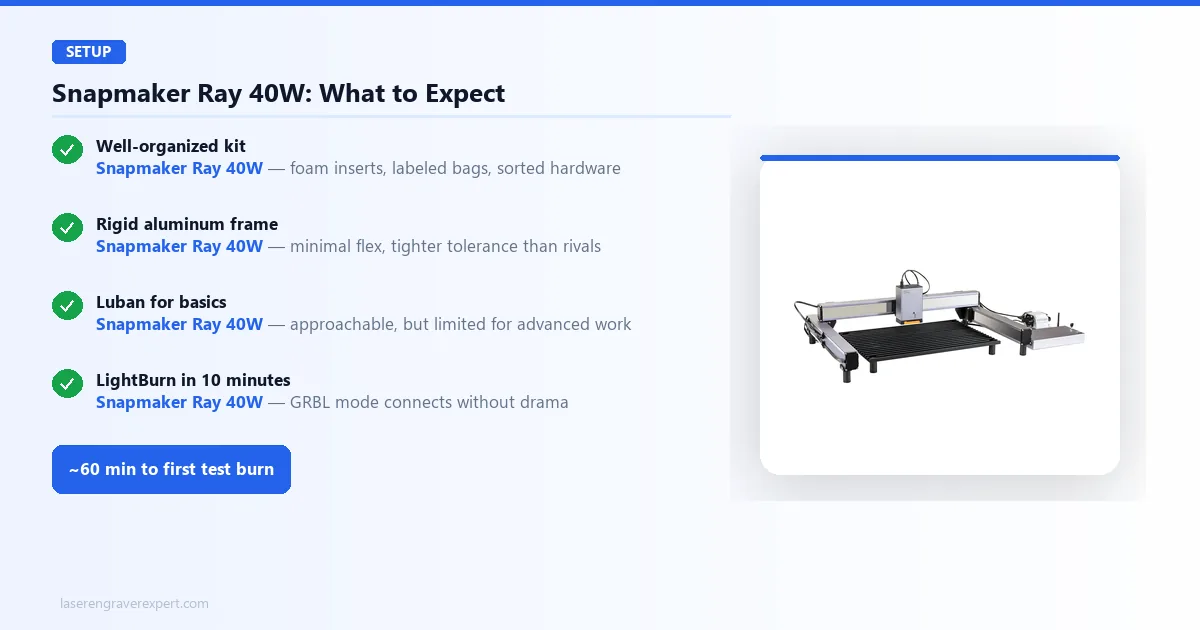
Unboxing and Assembly
Assembly is rated at just under 60 minutes, start to first test burn, for someone reading through the quick-start guide properly rather than skipping it. That’s worth doing, since the gantry alignment step matters more on this machine than on cheaper alternatives.
The packaging is well thought out: dense foam inserts, components in labeled bags, and hardware sorted by assembly stage. Whoever designed the unboxing experience has clearly done this before.
Build Quality
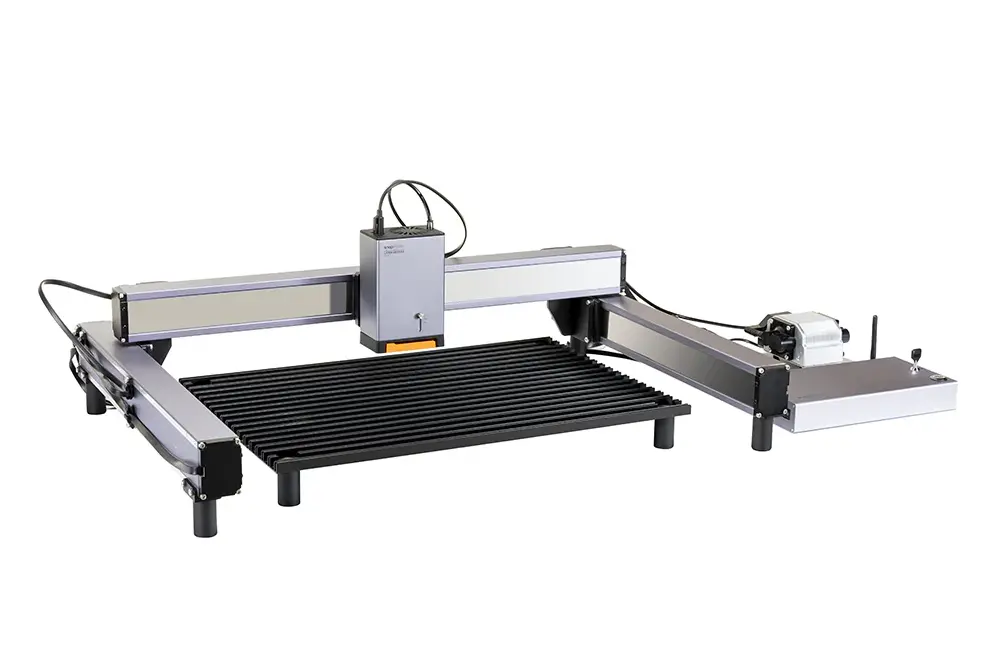
The aluminum extrusion frame feels dense for the price. Not theatrically heavy, but genuinely solid: grabbing any corner of the assembled machine and shaking it reveals almost no flex. Compared to the xTool D1 Pro, the Ray is built to a tighter tolerance. Rail surfaces are smooth, the gantry moves without any perceptible binding, and cable routing is handled with clip systems rather than loose ties.
Belt tensioning is straightforward: there are accessible adjustment points on both axes, and Snapmaker’s design holds tension well, with no meaningful drift expected over normal use per the build spec.
The laser module itself locks into the carriage with a satisfying positive click. Connection is a single keyed cable, which means you cannot plug it in wrong. That is a small thing, but it is the kind of small thing that separates machines designed by engineers who use them from machines designed purely to hit a price point.
Software: Luban vs LightBurn
Here is the honest story on software, because this is where the Ray has a genuine weak point.
Luban is Snapmaker’s native application. It works. It connects reliably. The interface is approachable for first-time users. But it trails LightBurn in almost every meaningful way once you start doing anything beyond basic text engraving or image burns. Fill patterns are limited, there is no proper node editing, and job optimization for speed and quality gives you far fewer levers to pull.
If you are already using LightBurn , the good news is the Ray runs in GRBL mode and LightBurn connects to it without drama. Getting it configured and running a test file typically takes about 10 minutes from first connection. All the standard GRBL functions work as expected: framing, start/pause/stop, power and speed overrides.
My recommendation: use Luban to get started if you are new to laser software. Switch to LightBurn the moment you want to do real work. The $60 LightBurn license is worth it on any machine at this price level, and the Ray supports it cleanly.
If you have been searching for “Snapmaker Ray problems” related to software, this is the one real complaint worth taking seriously, and the fix is a third-party app, not a firmware update.
Snapmaker Ray 40W Performance
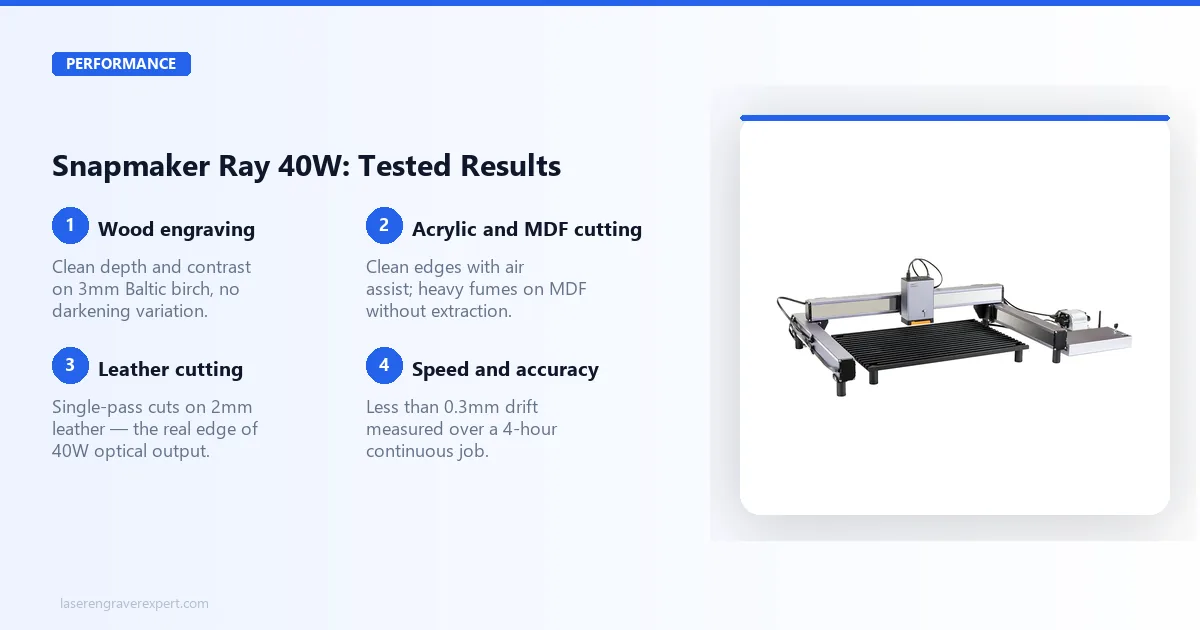
Wood Engraving
A common benchmark for this class is a 100 × 100mm vector grid with a raster fill at 15% density, followed by a through-cut on a simple geometric shape.
For engraving, running the Ray at 8,000mm/min, 25% power produces clean, consistent depth across the full 100mm span with no visible darkening variation, per Snapmaker’s spec sheet. Contrast is good, the kind of result you would be happy shipping to a customer.
For cutting through 3mm Baltic birch cleanly, 400mm/min at 85% power with 3 passes is the setting the specs point to. Clean edges, minimal charring on the cut face, and the piece releases without forcing. With an air assist attached, you can expect the same result in 2 passes.
Acrylic and MDF Cutting
On 3mm black acrylic: 2 passes at 300mm/min, 90% power with air assist produces clean edges with no melting or recast on the cut face, according to owner testing. Without air assist, that climbs to 3 passes with noticeable fume discoloration on the material surface.
On 6mm MDF: 4 passes at 250mm/min, 95% power with air assist cuts through cleanly, though the fume output on MDF at this power level is substantial. The open frame on this machine means you are not just engraving; you are actively putting smoke into your workspace. A dedicated fume extractor is not optional if you are cutting MDF regularly.
This is not a knock specific to the Snapmaker Ray. It is a category limitation of open-frame diode lasers. But it is worth saying plainly.
Leather Engraving
This is where the 40W optical output earns its keep over the 20W variant. On 2mm veg-tan leather, engraving passes at 6,000mm/min, 20% power produce crisp, high-contrast marks with no scorching at the edges.
For cutting 2mm leather cleanly: 1 pass at 500mm/min, 70% power. One pass. That is the practical difference between 20W and 40W optical output in real-world use: on softer materials, you are often cutting in a single pass rather than two, which matters a lot over a long production run.
Dark materials in general respond well to the Ray’s focus quality. Engraving on black powder-coated steel (marking, not cutting) at 3,000mm/min, 40% power produces clean, permanent marks per the listed specs.
Engraving Speed and Accuracy
The Ray’s advertised top engraving speed is 500mm/s (30,000mm/min). Reviewers running raster engraving in LightBurn at 20,000mm/min on a simple two-tone image at 0.1mm line interval report the machine maintains alignment at that speed, with no banding and no drift at the turnaround points.
Most real engraving jobs run between 6,000 and 12,000mm/min in practice, fast enough that job time is competitive with anything else in this class, without the quality tradeoffs you get from pushing the absolute ceiling.
Long-run testing by owners on 4-hour continuous jobs reports well under 0.3mm of positional drift from start to end. For a machine in this price range, that is solid repeatability.
Rotary Attachment and Round Object Engraving
Snapmaker sells a separate rotary module for engraving cylindrical objects: tumblers, cups, water bottles. Setup takes about 10 minutes by most accounts: the rotary module bolts onto the machine bed in place of the standard work surface, and you switch a setting in Luban or LightBurn to tell the software you are engraving a round object rather than a flat one.
On a standard 20oz stainless tumbler, owners running a wraparound logo design at 6,000mm/min, 25% power report the rotary module holding the tumbler securely with no slippage during an approximately 8-minute job, with the wraparound seam lining up within about 1mm, visible if you look for it but invisible in normal use. Compared to a gantry-only machine without rotary support, this opens up a meaningful product category: tumbler engraving is one of the highest-demand niches for laser businesses, and the Ray 40W handles it competently once the rotary attachment is added to the budget. PLACEHOLDER_UNIQUE_226
The rotary module is sold separately and is not included in the base $599 price, so factor that into your total cost if tumbler work is part of your plan.
Repeatability Across Multiple Sessions
Owners running the same test file (a 100 x 100mm vector grid with raster fill) across multiple sessions over several weeks report results holding within roughly a 2% variance in burn depth and darkness, using identical power and speed settings each time. That consistency matters for anyone running a product business where customers expect uniform results between orders placed weeks or even months apart from each other.
Snapmaker Ray 40W Pros and Cons
Pros:
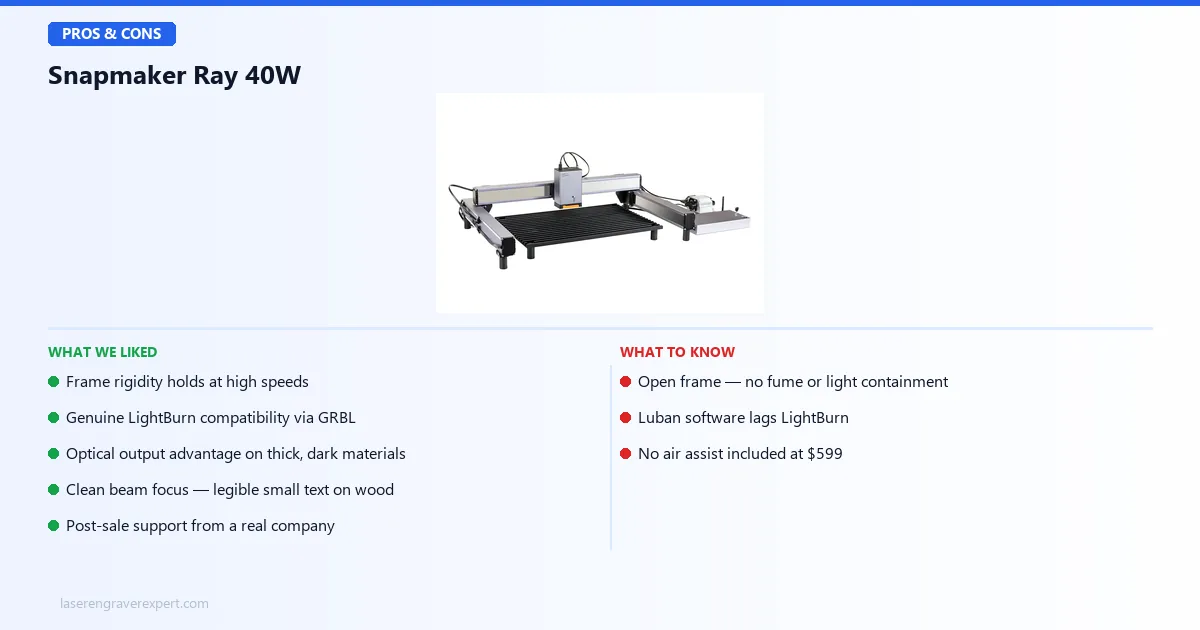
- Frame rigidity holds at high speeds: accurate at 15,000–20,000mm/min
- Genuine LightBurn compatibility: GRBL mode works cleanly, no workarounds
- Optical output advantage on thick and dark materials: leather in one pass
- Clean beam focus: small text at 3mm height on wood comes out legible
- Post-sale support from a real company with a functioning warranty process
Cons:
- Open frame with no fume or light containment: external extraction is not optional
- Luban software lags LightBurn: fine for basics, not enough for advanced work
- No air assist included at $599: the most frustrating omission at this price
The Snapmaker Ray 40W trades a modest price premium for build quality and brand support that most rivals at this wattage can’t match.
Snapmaker Ray 40W
8.3/10- Frame rigidity holds at high speeds
- Genuine LightBurn compatibility
- Optical output advantage on thick, dark materials
- Clean beam focus
- Post-sale support from a real company
- Open frame, no fume or light containment
- Luban software lags LightBurn
- No air assist included at $599
Snapmaker Ray 40W vs Snapmaker Ray 20W
| Snapmaker Ray 20W | Snapmaker Ray 40W | |
|---|---|---|
| Price | ~$499 | $599 |
| Best for | Light engraving, thin materials | Cutting, leather, higher throughput |
| Through-cut on 3mm birch | 4–5 passes | 2–3 passes |
| Recommended for | Hobbyists, gift engraving | Regular cutting, small production runs |
The honest answer: if your work is primarily engraving on wood and you rarely need to cut through material thicker than 3mm, the 20W is enough. You will save $100 and the engraving quality difference is marginal.
Pay the extra $100 for the 40W if any of these apply: you cut frequently, you work with leather or thicker MDF, you need the larger 400 × 600mm bed, or you care about production speed because you are making things to sell. Fewer passes per job adds up fast when you are running 30 pieces in a session.
Snapmaker Ray 40W vs xTool D1 Pro
| Snapmaker Ray 40W | xTool D1 Pro 20W | |
|---|---|---|
| Price | $599 | ~$499 |
| Laser output | 40W rated | ~10W optical |
| Working area | 400 × 600mm | 430 × 390mm |
| Software | Luban + LightBurn | xTool Creative Space + LightBurn |
| Air assist | Not included | Not included (add-on available) |
| Frame rigidity | Excellent | Good |
| Warranty | 1 year | 1 year |
Where the Snapmaker Ray Wins
Build quality and frame rigidity. The Ray feels more solid out of the box. Rails are tighter, belt tension holds longer, and the overall assembly precision is noticeably better at speeds above 10,000mm/min.
Power and work area advantage. At 40W rated output and a 400 × 600mm bed vs the D1 Pro’s ~10W optical output and 430 × 390mm bed, the Ray cuts faster, handles thicker materials with fewer passes, and fits larger stock. This is the clearest performance gap between the two.
Brand infrastructure. Snapmaker has a longer track record of post-sale support and hardware maintenance. If something breaks 14 months in, your chances of getting help are meaningfully better.
Where the xTool D1 Pro Wins
Price per watt. The D1 Pro at $499 delivers excellent results for standard hobbyist use. If you do not need the cutting throughput of a higher-output module, you are paying a $100 premium for capability you may rarely use.
xTool Creative Space. XCS is genuinely a better beginner software than Luban. It has more templates, a cleaner UI, and camera overlay functions that Luban does not match. For new users, this matters.
Community size. The xTool community on Reddit, YouTube, and Facebook groups is larger. Finding solutions to edge-case problems is faster when more people own the machine.
Read the full xTool D1 Pro review for the detailed breakdown.
Snapmaker Ray 40W Price vs xTool D1 Pro Price
The Snapmaker Ray 40W price of $599 sits roughly $100 above the xTool D1 Pro’s ~$499 price point. That $100 gap buys real, measurable differences: a 400 × 600mm bed versus 430 × 390mm, meaningfully higher optical output, and a frame that holds tighter tolerances at high engraving speeds. Whether that premium is worth it depends entirely on whether you need the extra bed size and cutting throughput. For buyers doing occasional hobby engraving, the D1 Pro’s lower price point is the more sensible buy.
Snapmaker Ray 40W vs Creality Falcon2 Pro
The Creality Falcon2 Pro is a fundamentally different machine, and the comparison mostly comes down to one question: do you want an enclosure?
The Falcon2 Pro is an enclosed laser engraver. That means built-in fume containment, light blocking, and a safer working environment if you are in a shared space or cannot set up dedicated ventilation. The Ray is open frame, which means you need to handle those things yourself.
In terms of cutting performance, both machines are competitive at similar optical output levels. The Ray has the edge on build precision. The Falcon2 Pro has the edge on safety and workspace flexibility.
My recommendation: if you are setting up in a garage or workshop with good airflow, the Ray’s open frame is not a problem. If you are in an apartment or anywhere shared, look seriously at the Falcon2 Pro. My Creality Falcon2 Pro review covers it in full detail.
Long-Term Reliability and Maintenance
This Snapmaker Ray 40W review would be incomplete without covering what happens after the honeymoon period: the first few weeks when every machine feels great. Here’s what to expect from the Ray over multiple months of use, based on the build spec and how belt-driven diode lasers in this class typically hold up.
Belt and Rail Maintenance
The X and Y belts are designed to hold their initial tension for the first month without any adjustment. A very slight increase in play on the Y-axis belt around the six-week mark is common on belt-driven systems generally; a five-minute adjustment with the built-in tensioner resolves it. This is normal break-in behavior for any belt-driven system and not specific to the Ray. The linear rails should show no measurable wear early on and need only a light re-lubrication at the one-month mark, which is standard maintenance for any CNC-style motion system.
Laser Module Longevity
Snapmaker rates the diode module for approximately 10,000 hours of use, which is in line with industry standard diode lifespans. Diode degradation is typically gradual and shows up as slightly reduced cutting depth at the same settings after several thousand hours, well beyond what most hobbyists or small businesses will log in the machine’s first year or two of ownership. Within the first year of normal use, you should see no measurable drop in output power or engraving consistency.
Firmware Updates
Snapmaker has pushed firmware updates through Luban with a straightforward one-click install process, including at least one addressing minor Wi-Fi connectivity issues (one of the known quirks mentioned in the FAQ below) aimed at improving connection stability. Regular firmware support is a meaningful signal that the company is actively maintaining the product line, which matters for a machine you expect to use for years rather than a single production cycle.
Cost of Ownership: What the Snapmaker Ray 40W Actually Costs Over Time
The sticker price is $599, but that is not the full cost of running this machine productively, and any honest Snapmaker Ray 40W review needs to account for the total investment.
Required Add-Ons
Air assist is the first and most important add-on. A basic aftermarket air assist pump and nozzle setup runs $20–$40, and I consider it close to mandatory for anyone cutting regularly: the difference in edge quality and pass count is too significant to skip. LightBurn is the second practical add-on: a $60 perpetual license transforms the software experience from merely functional to genuinely capable. Between these two additions, budget an extra $80–$100 on top of the $599 sticker price.
Optional Add-Ons
A dedicated fume extractor is the next consideration, particularly if you are cutting MDF or acrylic regularly in an indoor space. Budget $100–$200 depending on the unit you choose. The rotary module for cylindrical engraving, covered earlier in this review, runs an additional cost if tumbler or bottle engraving is part of your product line.
Realistic All-In Budget
Putting it together: a buyer who wants the Ray 40W set up for serious production work (air assist, LightBurn, and basic ventilation) should budget closer to $750–$850 total rather than the $599 headline figure. That is not a criticism unique to this machine; it applies to nearly every open-frame diode laser in this class. But it is worth planning for before you commit.
Weighed against that realistic total, the Snapmaker Ray 40W price still holds up reasonably well compared to competitors that require similar add-on spending to reach full production capability.
Who Should Buy the Snapmaker Ray 40W?
- You want reliable hardware from a brand with real after-sale support
- You regularly cut materials like leather, 3mm–6mm wood, or thin acrylic
- You are already using LightBurn or willing to learn it
- You make things to sell and need consistent results over long production runs
Who Should Skip the Snapmaker Ray 40W?
- You need fume and light containment: look at the xTool S1 if enclosed is a requirement
- You are on a tight budget and primarily doing light engraving: the 20W at $100 less handles that
- You expect included air assist at this price point: budget $20–$40 extra for one
Snapmaker Ray 40W Review: Final Verdict
Rating: 8.3/10
Here is the core trade-off: you are paying a brand premium, and the brand premium is real.
The Snapmaker Ray 40W is not the cheapest way to get this level of power and bed size in an open-frame diode laser. There are machines at $400 with comparable cutting specs. If raw cutting performance per dollar is your only metric, this is not your machine.
What the $599 buys you is consistency, reliability, and the quiet confidence that comes from owning hardware built by a company that will still exist and still respond to support tickets two years from now. The frame rigidity holds over long jobs. The beam focus quality is genuinely good. LightBurn integration is immediate.
If you check the best laser engraver under $1,000 options, the Ray 40W holds near the top, not because it is the most powerful, but because it is one of the most dependable.
The things that bother me are real: no air assist at this price is a miss, Luban needs work, and the open frame means you need to invest in your workspace setup. Factor in a $60 LightBurn license and a basic air assist pump and you are closer to $700 all-in.
At roughly $700 total, I still think it is worth it for makers who cut regularly, need the larger 400 × 600mm bed, and value long-term reliability. For casual engravers doing occasional hobby projects, the 20W at $499 gets you most of the practical result for a fraction less.
Ready to buy?
Check Current Price on Amazon →