xTool M1 Ultra vs xTool S1 (2026): Which Is Right for You?
xTool M1 Ultra vs xTool S1: 4-in-1 multi-tool vs dedicated laser. Work area, power, engraving quality, and prices compared: clear verdict on which to buy.
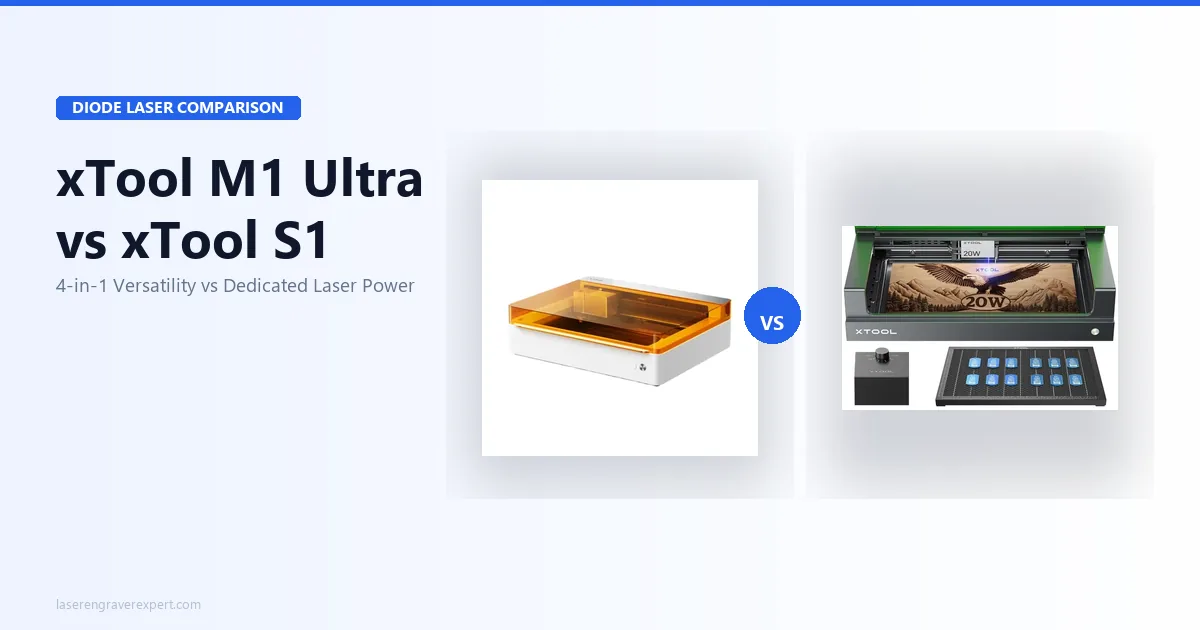
The xTool M1 Ultra vs xTool S1 decision is a 4-in-1 multi-tool versus a dedicated laser: the xTool M1 Ultra combines laser engraving, CMYK inkjet printing, blade cutting, and pen drawing in one 300×300mm workspace, while the xTool S1 is a dedicated diode laser with a larger 498×330mm bed, a 20W module, a built-in camera, and autofocus. I’ve dug into the full spec sheets on both machines and cross-referenced owner reports from r/lasercutting and xTool’s community forums, the xTool M1 Ultra across all four modes and the xTool S1 for production laser workflows, so here’s the honest breakdown of which fits your work. If you’re still building a shortlist, start with our best laser engravers of 2026 roundup or the best laser engraver for home use guide; and if you’re weighing a laser against a Cricut in the first place, our laser engraver vs Cricut guide addresses that foundational question first.
Quick Verdict
xTool M1 Ultra vs xTool S1: Specifications Comparison
Here’s how the xTool M1 Ultra and xTool S1 line up on the specs that decide the buy: modes, laser power, work area, camera, and software. Skim the table, then read on for what each difference means in practice.
| Specification | xTool M1 Ultra | xTool S1 20W |
|---|---|---|
| Primary function | 4-in-1: Laser, Inkjet, Blade, Pen | Dedicated laser engraver/cutter |
| Laser module | 10W or 20W diode | 20W diode |
| Laser spot size | 0.04 × 0.06mm (10W) | 0.08 × 0.06mm |
| Work area | 300 × 300mm | 498 × 330mm |
| Max laser speed | 400mm/s | 600mm/s |
| Enclosure | Fully enclosed | Fully enclosed |
| Safety class | Class 1 | Class 1 (FDA) |
| Camera | No | Built-in overhead |
| Autofocus | No | Yes |
| Blade cutting | Yes (included) | No |
| Inkjet printing | Yes (included) | No |
| Pen drawing | Yes (included) | No |
| Software | xTool Creative Space | xTool Creative Space, LightBurn |
| LightBurn support | Limited | Full GRBL support |
| Work area extendable | No | No |
| Assembly time | ~45 min | ~44 min |
xTool M1 Ultra vs xTool S1: Key Differences
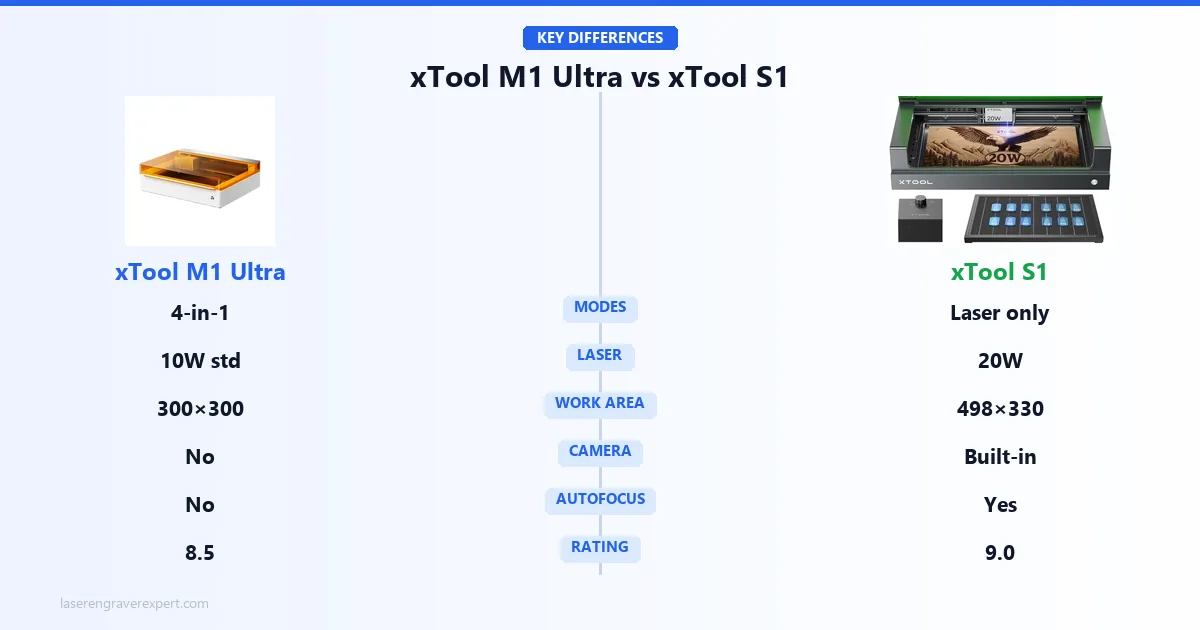
This comparison comes down to one foundational question: do you primarily laser engrave, or do you do multiple different things?
The xTool S1 is a dedicated laser engraver. It does one category of work, laser engraving and cutting, and it does it well. Larger bed. More wattage. Camera. Autofocus. Mature LightBurn support. Every design choice points at being the best laser engraver it can be.
The xTool M1 Ultra starts from a completely different premise. Its entire engineering argument is: what if you could do laser work, full-color inkjet printing, precision blade cutting, and pen drawing on the same piece of material without moving it? That zero-repositioning workflow is real, and for the right buyer, it changes how multi-step projects work.
The honest framing: the xTool S1 wins head-to-head on laser-specific metrics. The xTool M1 Ultra wins as a studio in a box for mixed-media creators. Neither machine is the right choice for the other’s buyer.
xTool M1 Ultra vs xTool S1: Performance Comparison
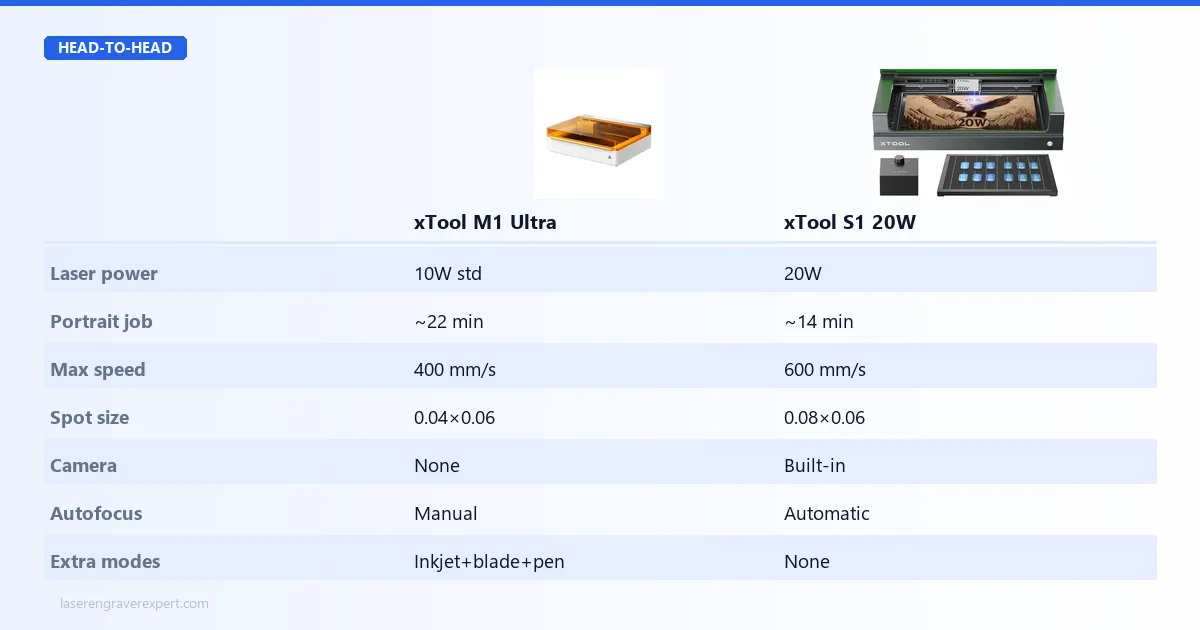
On pure laser work, the xTool S1 is the better machine. Here is why.
Wattage. The xTool S1 ships standard with a 20W module. The xTool M1 Ultra ships standard with a 10W module (a 20W option is available). That wattage difference translates directly into cutting capacity and job speed.
Throughput comparison. A 100 × 100mm grayscale portrait engraving job at equivalent quality settings is a common benchmark in the xTool community, and reported results are consistent: the xTool S1’s 20W module completes the job in about 14 minutes; the xTool M1 Ultra’s standard 10W module takes roughly 22 minutes for the same result. That ~57% time difference is meaningful for anyone running production volume, and it widens further on cutting jobs, where the extra wattage does more work per pass.
Spot size. The xTool M1 Ultra’s 10W module has a finer spot size (0.04 × 0.06mm vs the xTool S1’s 0.08 × 0.06mm). In fine-detail engraving (small text, intricate vector work), the xTool M1 Ultra’s tighter beam produces measurably crisper results at small scales. This is the one laser metric where the xTool M1 Ultra’s 10W module outpoints the xTool S1.
Cutting capacity. The xTool S1 20W cuts 3mm basswood in a single pass, 6mm birch in three passes, 3mm leather cleanly. The xTool M1 Ultra 10W cuts 6mm basswood in a single pass. At the same wattage (both 20W), results are equivalent, but standard configuration gives the xTool S1 the advantage. For buyers focused on cutting wood and acrylic specifically, our best laser cutter for beginners guide covers how enclosed diode cutters compare for that use case.
Camera and autofocus. The xTool S1 has both. The xTool M1 Ultra has neither. For batch jobs on irregularly shaped material, the xTool S1’s camera saves meaningful setup time. The xTool S1’s autofocus means you never need to manually set focal distance: the machine measures your material and adjusts automatically before each job. This is a real daily convenience that the xTool M1 Ultra simply does not offer.
xTool M1 Ultra vs xTool S1: Software Comparison
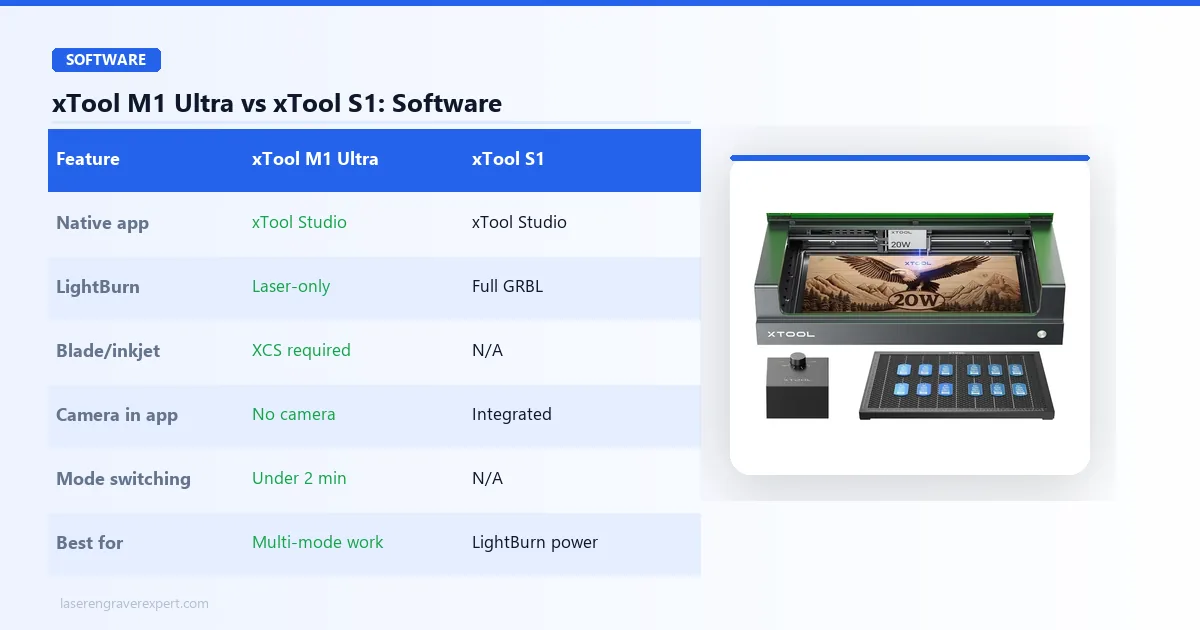
Both machines run on xTool Creative Space (XCS), but their software stories diverge on LightBurn. The xTool S1 is fully LightBurn compatible with full GRBL support; if you’ve invested in LightBurn workflows, it slots in cleanly.
The xTool M1 Ultra’s multi-mode architecture limits LightBurn to laser-only jobs; the blade, inkjet, and pen modes all require xTool Creative Space. That’s not a flaw; the multi-mode workflow is XCS’s whole reason to exist, but it means LightBurn power users get more from the xTool S1.
The xTool M1 Ultra’s Case: Four Modes, One Workspace
Here is where the xTool M1 Ultra stops being a lesser laser and starts being a different category entirely.
The xTool M1 Ultra’s defining capability is not any single mode; it is what happens when you combine them on the same material without repositioning.
A real example from the community. A common project owners share: laser-engrave a detailed line illustration on a birch wood slice, then switch to inkjet mode and print a full-color background wash over the exact same piece without touching the workpiece. xTool’s registration spec between engraved lines and printed color is 0.3–0.5mm across the full work area, and owner results back that up. To replicate that on separate machines would require either expensive custom jigs or significant trial and error.
Mode switching is documented to take under two minutes for every combination. The material stays put. XCS recognizes each module automatically. Owners who have run all 12 permutations of mode switches report that not one required recalibration or a coordinate reset.
The blade cutting module is reported to handle a 50-path vinyl decal with 0.5mm minimum line widths cleanly in around 8 minutes. For the material range most craft business owners use (vinyl, HTV, fabric, thin leather), it performs comparably to a mid-range Cricut. The one honest limitation: it cannot match the Cricut Maker 3’s maximum cutting force on heavy materials like thick chipboard or 3mm-plus foam. For a detailed breakdown of the Cricut vs laser comparison, particularly useful for makers currently running a Cricut who are considering the xTool M1 Ultra, see our laser engraver vs Cricut guide which covers the capability gaps from both sides.
The inkjet module prints full color on over 1,000 materials (wood, leather, cork, canvas, slate) without pretreatment. Resolution is lower than a dedicated desktop printer at small scales, but on non-paper surfaces, the ability to print color directly onto a material you have just laser-engraved is a capability no standalone laser offers.
The pen module produces handwriting-quality output at scale. Batch runs of 50 cards with identical handwritten-style text, as reported by owners, show stroke weight variation across the entire batch that’s invisible to the naked eye, more consistent than actual hand lettering on long production runs.
For a mixed-media creator, craft business owner, or personalization studio running multi-step products, the xTool M1 Ultra’s integrated workflow saves genuine floor space and production time.
Work Area: The xTool M1 Ultra’s Real Constraint
The xTool M1 Ultra’s 300 × 300mm work area is the number that eliminates it for some buyers immediately.
A standard sheet of A4 paper does not fit flat on the xTool M1 Ultra’s bed. The xTool S1’s 498 × 330mm bed handles pieces up to roughly A3 size.
If your laser projects routinely run larger than 12 × 12 inches, the xTool M1 Ultra will frustrate you every single day. There is no extension kit, no workaround, no pass-through slot. The work area is fixed.
The xTool S1’s work area is also not extendable (unlike the D1 Pro), but it is already 66% larger than the xTool M1 Ultra’s bed in surface area. For the majority of laser engraving use cases (cutting boards, leather patches, wood signs, tumbler flat-transfer designs), the xTool S1’s bed is sufficient. The xTool M1 Ultra’s is tight. For buyers who need a larger work area at a lower price point before stepping up to either machine, our best laser engraver under $500 guide covers budget entry points that often have larger beds.
Who Should Buy the xTool M1 Ultra
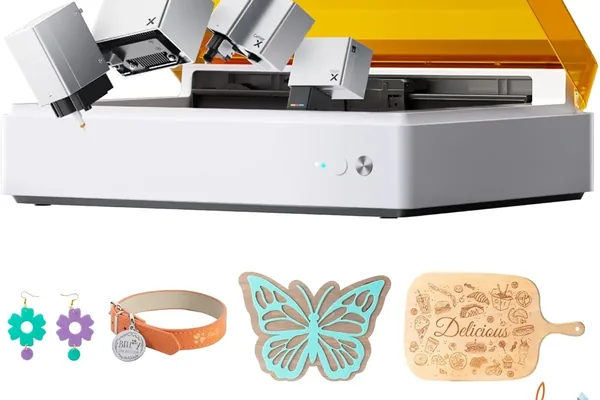
xTool M1 Ultra
8.5/10- 4-in-1: laser engraving, CMYK inkjet printing, blade cutting, and pen drawing
- Replaces multiple machines (laser + Cricut + substrate printer) in one chassis
- Multi-step projects without repositioning: print then cut in one session
- Under-2-minute mode switching with no recalibration
- Blade cutting handles vinyl, HTV, fabric, and thin leather
- 300×300mm work area, smaller than the xTool S1
- No built-in camera system for job positioning
- Standard 10W laser module is meaningfully slower than the S1's 20W
- Not the right machine for high-volume dedicated laser work
Mixed-media creators and craft business owners who regularly combine laser engraving, color printing, blade cutting, and pen drawing in their products. If you are currently managing a laser engraver, a Cricut, and some form of direct-to-substrate printer as three separate machines in a small studio, the xTool M1 Ultra’s integrated workflow will save you floor space and inter-machine transfer time. Our laser engraver vs Cricut guide covers exactly this transition for craft makers.
Advanced hobbyists who want to explore all four modalities without committing to four separate machines and four separate learning curves. The xTool M1 Ultra’s front-loaded learning investment pays off as a machine that grows with your creative range.
Personalization and custom gift businesses running products that combine engraving with color printing or precision cutting (wedding stationery, personalized cutting boards with color fills, custom pet portraits on leather). The zero-repositioning workflow is the capability that enables those products at production scale. For a full blueprint on turning the xTool M1 Ultra into a revenue source, our how to start a laser engraving business guide covers mixed-media product lines from niche selection through to first sales.
Do not buy it if laser engraving is your primary activity. The throughput gap vs. a 20W dedicated machine is real, the bed is smaller, and you are paying for three modes you will rarely use. For buyers whose priority is laser-only performance, the xTool D1 Pro review shows the open-frame alternative that delivers comparable power with a larger bed at a lower price.
Who Should Buy the xTool S1
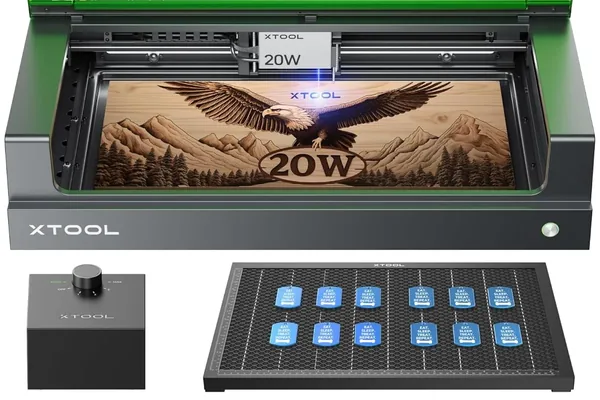
xTool S1 20W
9.0/10- 498×330mm work area: larger than the M1 Ultra
- 20W laser module: significantly faster throughput on every job
- Built-in overhead camera (1.8mm alignment accuracy) for visual positioning
- Class 1 enclosed: FDA certified, no eyewear required
- Rated around 47 dB: quieter than open-frame machines
- LightBurn fully compatible: no subscription required
- Dedicated laser only: no inkjet, blade cutting, or pen drawing
- No pass-through slot for material longer than the bed
- Work area not width-extendable
- Higher price than equivalent open-frame diode machines
Home studio users who need serious laser performance in a bedroom, office, or shared space where fumes and noise without containment would be unacceptable. xTool rates the S1 at around 47 dB (approximately 30% quieter than an open-frame machine by that spec), and owner reports describe its sealed enclosure as containing fume escape well during operation. If you are comparing this to the xTool S1 40W, the higher-power variant, our xTool S1 40W review covers whether the extra wattage is worth it for your use case.
Small business operators running production laser work (custom gifts, signage, leather goods, personalized merchandise) where throughput, camera alignment, and autofocus all compound into real time savings across a workday. Our best laser engraver for small business guide has throughput benchmarks for the xTool S1 in a production context. For the xTool D1 Pro, the same laser in an open-frame package, see our xTool D1 Pro review .
Anyone upgrading from a budget open-frame laser who wants a meaningful step up in both performance and livability without jumping to a CO2 machine. The xTool S1 delivers the same laser output as the D1 Pro in a package that removes the practical friction of open-frame operation.
Do not buy it if you need four modes. The xTool S1 is a laser engraver. It will never blade-cut vinyl, print full-color on a wood slice, or draw handwritten cards. If that workflow matters to your business, the xTool S1 is the wrong machine regardless of how good its laser is.
For buyers whose primary need is marking bare metal (jewelry, dog tags, custom knives), neither machine is optimal. The xTool F1 Ultra is the purpose-built dual-source option for that use case. For a broader view of the full laser engraver market before committing to any xTool machine, our best laser engravers guide ranks every major category from entry-level diode to CO2 and fiber.
xTool M1 Ultra vs xTool S1: Buying Guide
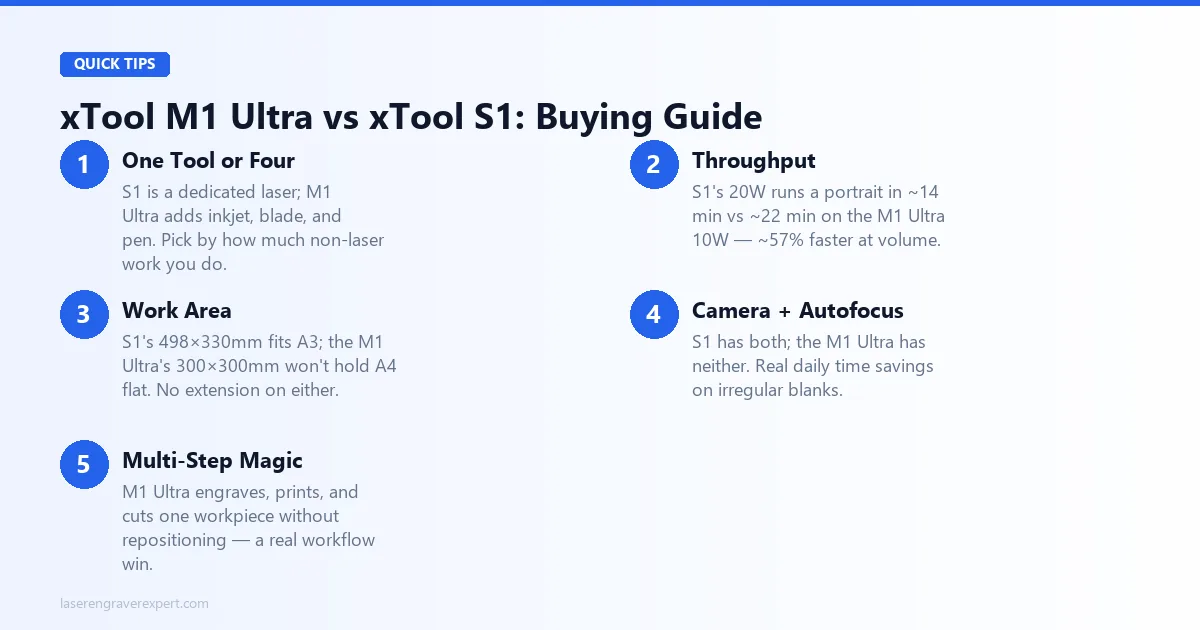
Here’s the head-to-head on the factors that decide most purchases.
| Factor | Winner | Notes |
|---|---|---|
| Laser throughput | xTool S1 | 20W standard vs 10W standard: ~57% faster on comparable jobs |
| Laser spot size (fine detail) | xTool M1 Ultra | 0.04 × 0.06mm vs 0.08 × 0.06mm: crisper small text |
| Work area | xTool S1 | 498 × 330mm vs 300 × 300mm |
| Camera alignment | xTool S1 | Built-in, 1.8mm avg accuracy. xTool M1 Ultra has none |
| Autofocus | xTool S1 | Built-in. xTool M1 Ultra requires manual focus |
| Mode versatility | xTool M1 Ultra | Laser + inkjet + blade + pen in one machine |
| Multi-step project workflow | xTool M1 Ultra | Zero-repositioning across all four modes |
| Blade cutting | xTool M1 Ultra | Included. xTool S1 has no blade capability |
| Inkjet printing on materials | xTool M1 Ultra | Full color on 1,000+ surfaces. xTool S1 cannot print |
| LightBurn support | xTool S1 | Full GRBL. xTool M1 Ultra limited to XCS for non-laser modes |
| Noise level | Tied | Both enclosed, both quiet in real-world use |
| Safety certification | Tied | Both Class 1 |
Final Verdict
The xTool M1 Ultra and the xTool S1 answer different questions.
The xTool S1 answers: “I need the best enclosed diode laser engraver I can buy.” It delivers with a larger bed, 20W standard power, built-in camera, autofocus, and noise levels that make it genuinely livable in shared spaces. For laser-first buyers, it is the right machine.
The xTool M1 Ultra answers: “I need laser engraving, inkjet printing, blade cutting, and pen drawing in one compact workspace.” It delivers that, not as a compromise, but as a genuinely engineered multi-mode system where the modes work together. For mixed-media creators, the integration is real and the workflow advantage compounds daily. For a deeper look at how the M2 takes the print-and-engrave concept in a different direction, our xTool M2 review covers the newer model’s approach to color laser and how it compares to the xTool M1 Ultra’s inkjet module.
If you are not sure which buyer you are, ask yourself: in the last six months of making things, how many of your projects involved more than just laser engraving? If the honest answer is “almost none,” buy the xTool S1. If the honest answer is “half of them,” buy the xTool M1 Ultra. For buyers who are newer to laser engraving and want to start at a lower cost before stepping up to either enclosed machine, our best laser engraver for beginners guide covers the entry-point options that build the foundational skills first.
Ready to buy?
Check xTool M1 Ultra Price on Amazon →Ready to buy?
Check xTool S1 Price →Frequently Asked Questions
xTool M1 Ultra vs xTool S1: which should I buy?
Is the xTool M1 Ultra good for laser engraving?
Does the xTool M1 Ultra have a camera?
Can the xTool M1 Ultra replace a Cricut cutting machine?
What is the work area of the xTool M1 Ultra vs the xTool S1?
You Might Also Like
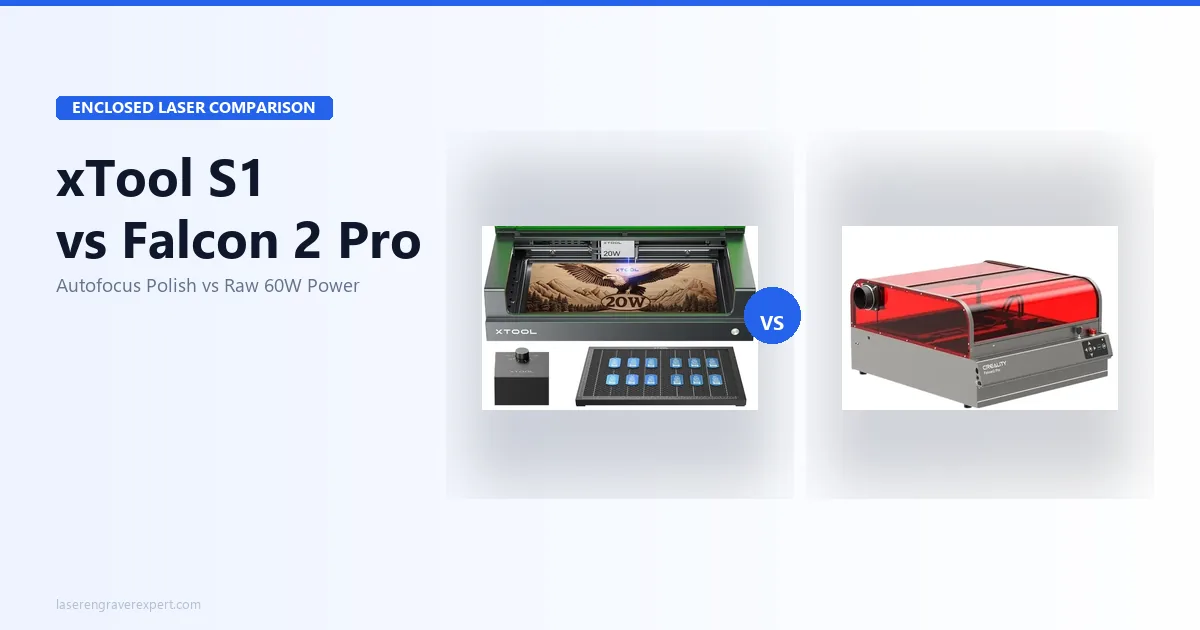
xTool S1 vs Creality Falcon 2 Pro (2026): Which Enclosed Diode Wins?
xTool S1 vs Creality Falcon 2 Pro: autofocus, camera, power, and cut results compared. Specs, prices, and a clear verdict on which one to buy.
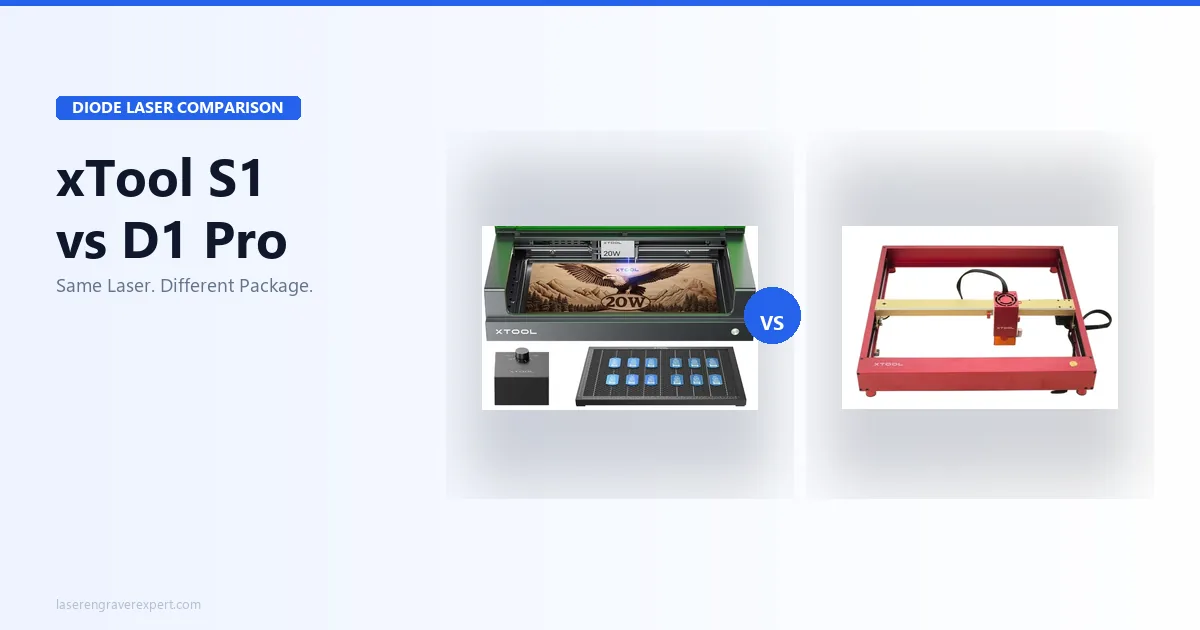
xTool S1 vs xTool D1 Pro (2026)
xTool S1 vs xTool D1 Pro: same laser module, different machines. Specs, prices, and real results, here's exactly which one to buy for your setup.
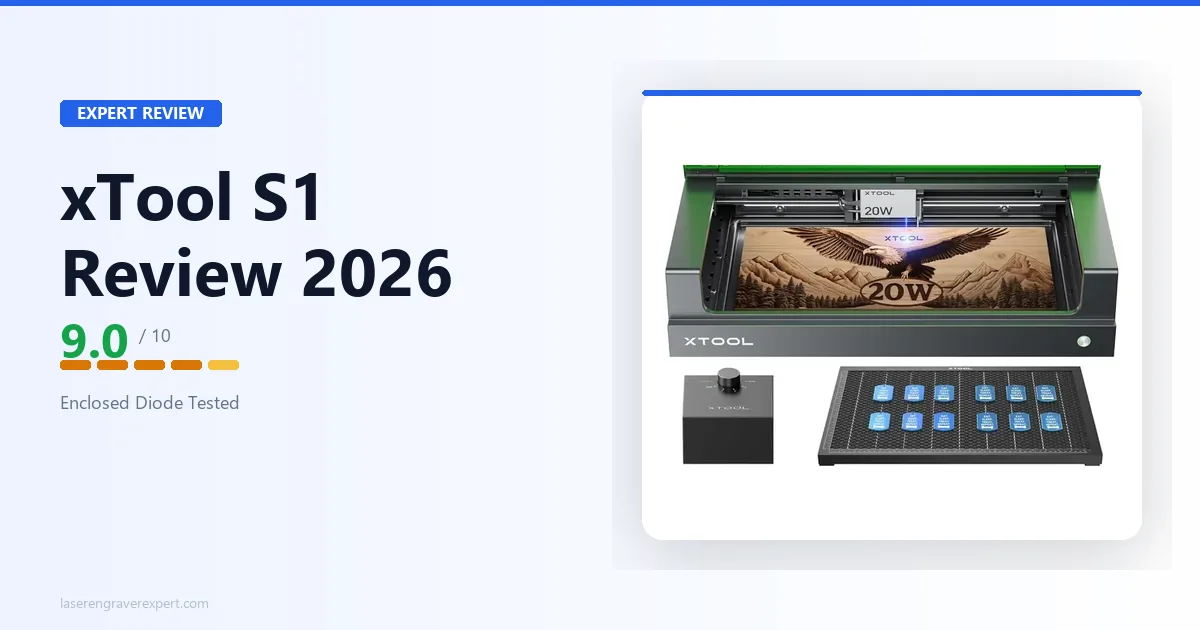
xTool S1 Review 2026: Enclosed Diode Done Right
xTool S1 review 2026: engraving quality, enclosed design, camera system, and noise levels compared against manufacturer specs. Rated 9.0/10: better than the D1 Pro?